Jamak is a free web tool that adds movie- and TV-style subtitles to your photos. There’s no sign-up, and your photos are never uploaded. Subtitles work in Korean, English and Japanese, each in its own subtitle font.
Examples
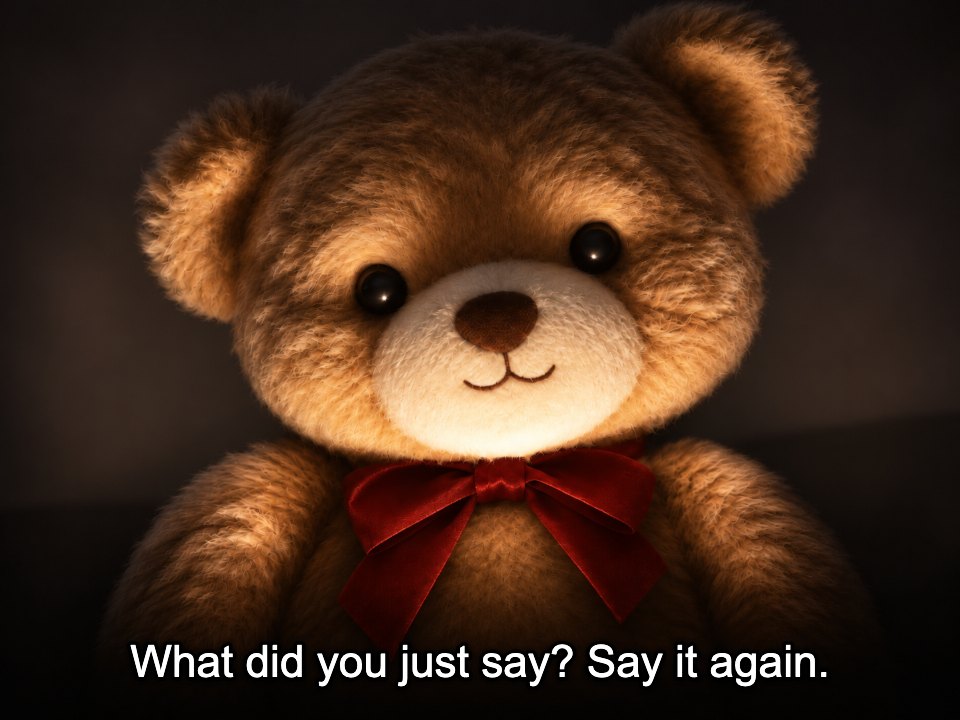


How to add subtitles to a photo
Add your photo
Tap Add, drag a photo onto the page, or paste a copied image with Ctrl+V (⌘+V on Mac). You can add several at once.
Type your subtitle
Type in the Subtitle box, or tap the subtitle on the photo and edit it right there. Press Enter for a new line. Size and position scale with the photo automatically.
Save or copy
Save as JPG or PNG. Use Save all to get every photo in one zip, or Copy image to paste it straight into a chat. On a phone, Save opens the finished image. Press and hold it to save it to your photos.
Why Jamak
Same format every time
Text size, bottom margin and outline scale with the photo, so your subtitles look the same on every image.
Movie and TV subtitle styles
Pick English, Japanese or Korean film subtitle styles, add letterbox bars, and try a film camera or black-and-white look.
No sign-up, no watermark
It’s free. Open the page and start. Nothing is added to your images.
Your photos stay on your device
Subtitles are drawn and saved inside your browser. Your photos are never uploaded to a server.
jamak (자막) means “subtitle” in Korean.
Frequently asked questions
Do I need an app or an account to add subtitles to a photo?
No. Jamak runs in your browser. Nothing to install, no account.
Does it work on my phone?
Yes, in iPhone and Android browsers. Tap Save and the finished image opens large: press and hold it to save it to your photos, or tap Share to send it to a chat app. You can also add Jamak to your home screen.
Are my photos uploaded anywhere?
No. Your photos never leave your browser. Everything happens on your device, and the photos are gone when you close the page.
Is it free? Is there a watermark?
It’s free, and there’s no watermark.
How do I make it look like a movie still?
Pick a subtitle style such as English film, add a letterbox under Photo effects, and try the Film camera look.
Can I add subtitles to many photos in the same style?
Yes. Add several photos and the subtitle style, aspect ratio and letterbox apply to all of them. Type a subtitle for each, then use Save all to get one zip.
Can I stack several photos into one image?
Yes. Add two or more photos and choose “Stack” above the preview. Up to four photos are joined top to bottom into one image, and each panel gets its own subtitle — “Going to work” on top, “Leaving work” below.
Can I save in Instagram sizes like 1:1 or 4:5?
Yes. Choose an aspect ratio under Photo effects and drag the preview to pick the crop. Even with letterbox bars added outside the photo, the result keeps the ratio you chose.
Can I make yellow subtitles?
Yes. Open Fine-tune under Subtitle style and switch the text color to yellow, like classic DVD subtitles. You can also change the size, bottom margin, outline and shadow there.
Which fonts does it use?
Gulim uses Baekmuk Gulim, Korean cinema uses Nanum Gothic, English film uses Arial (or Arimo when Arial isn’t available), Japanese film uses Klee One, and Japanese gothic uses Noto Sans JP. All are free fonts that may be used on the web. They load with the page, so there’s nothing to install.
My photo won’t open.
Some browsers can’t open iPhone HEIC photos. Convert it to JPG or PNG and add it again.